Introduction
The purpose of this post is to explain how to be less afraid of Agentic Coding or AI-assisted programming. Currently, there's an online trend about AI taking our jobs. Some jobs will definitely transform, and people will not need that much. But when talking about developers loosing their jobs, which is, for some reason, the target of VC-backed companies is sadly. And many developers are afraid of agentic coding. I will not blame them; it's hard to feel like you are not in control anymore. Fortunately, not everything is bad in agentic coding; you can benefit a lot if you Know Your Tools
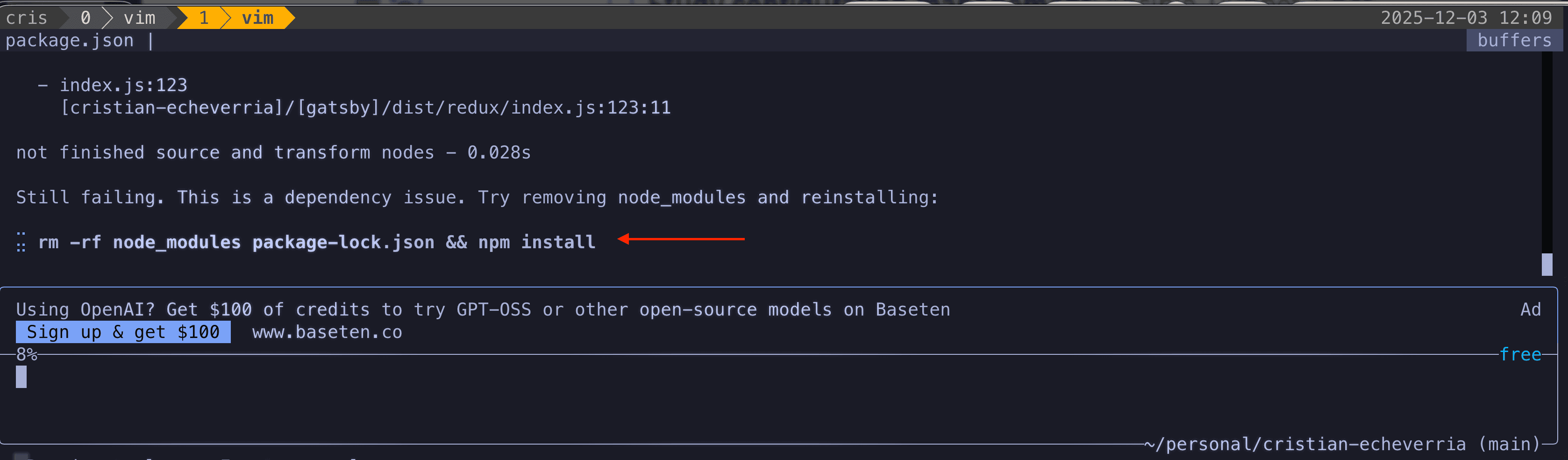
Example of an AI Coding Agent using Bash commands:
The Know How
Let's start at the beginning: What is an AI Agent?
There are multiple definitions about what an AI Agent is, some are very detailed and highly technical, and others are simpler, like: An Agent is a LLM with tools.
Yup, short, simple, sweet!
Tools
Talking about tools, you can define the tools your selected LLM will use, such as fetching weather data, calling an endpoint, doing a web search, and running bash commands.
With tools like web search and running bash commands, you already have a Coding Agent.
Bash
A good coding agent has bash tools enabled and provides proper context feedback from executing bash commands to make decisions based on those commands and "heal itself". But do you know some bash commands?
You don't need to be a DevOps expert to know a few bash commands, actually the primary purpose of this post is to encourage you to spend some time to Know Enough Bash Commands To Be Dangerous, at least you need to know:
- find
- grep / ripgrep
- curl
- tail
- head
- kill
- ps
With those commands, you already know what's going on when your favourite coding agent starts doing its Magic by using bash commands to find the information/context it needs to answer your request. You see, it's not Magic, it's just good old-fashioned use of computer commands that have been living among us for around 20+ years.
Of course, the Magic is behind the LLM making decisions on what tools to use based on user input, but it is not black Magic, it is if you don't Know Your Tools
Bash Commands Cheat Sheet
pwd
Print working directory - shows your current location.
pwdcp
Copy files or directories.
cp source.txt dest.txt       # Copy file
cp -r folder/ new_folder/    # Copy directory recursively
mv
Move or rename files and directories.
mv old_name.txt new_name.txt  # Rename
mv file.txt /new/location/    # Move to different location
File Content Operations
cat
Display file contents.
cat file.txtless
View file contents one page at a time (use q to quit).
less large_file.txthead
Show the first lines of a file (default: 10 lines).
head -n 20 file.txt # Show first 20 linestail
Show the last lines of a file.
tail -n 20 file.txt   # Show last 20 lines
tail -f log.txt       # Follow file updates in real-time
grep
Search for patterns in files.
grep "search_term" file.txt
grep -r "pattern" /directory/  # Search recursively
grep -i "case_insensitive" file.txt
File Permissions
chmod
Change file permissions.
chmod 755 script.sh   # rwxr-xr-x
chmod +x script.sh    # Make executable
chown
Change file owner.
chown user:group file.txtProcess Management
ps
Show running processes.
ps aux # Show all processes with detailstop
Display real-time process information.
topkill
Terminate a process by PID.
kill 1234        # Graceful termination
kill -9 1234     # Force kill
jobs
List background jobs in current shell.
jobsbg / fg
Move jobs to background or foreground.
bg %1  # Resume job 1 in background
fg %1  # Bring job 1 to foreground
System Information
df
Show disk space usage.
df -h # Human-readable formatdu
Show directory/file space usage.
du -sh folder/ # Summary of folder sizefree
Display memory usage.
free -h # Human-readable formatNetwork Commands
ping
Test network connectivity.
ping google.comcurl
Transfer data from or to a server.
curl https://example.com
curl -O https://example.com/file.zip  # Download file
curl -fsSL https://claude.ai/install.sh | bash  # Example script download and execute
curl -fsSL https://claude.ai/install.sh > install.sh  # Download script without executing
wget
Download files from the web.
wget https://example.com/file.zipssh
Connect to remote server securely.
ssh user@hostnameText Processing
echo
Display text or variables.
echo "Hello World"
echo $PATH
wc
Count lines, words, and characters.
wc -l file.txt   # Count lines
wc -w file.txt   # Count words
sort
Sort lines of text.
sort file.txt
sort -r file.txt  # Reverse order
uniq
Remove duplicate adjacent lines.
sort file.txt | uniqsed
Stream editor for text manipulation.
sed 's/old/new/g' file.txt # Replace old with newawk
Pattern scanning and processing.
awk '{print $1}' file.txt # Print first columnRedirection & Pipes
>
Redirect output to a file (overwrite).
echo "text" > file.txt>>
Redirect output to a file (append).
echo "more text" >> file.txt|
Pipe output from one command to another.
ls -l | grep ".txt"
find ~ -maxdepth 3 -type f 2>/dev/null | grep vapi
2>
Redirect error output.
command 2> error.logArchive & Compression
tar
Archive files.
tar -czf archive.tar.gz folder/  # Create compressed archive
tar -xzf archive.tar.gz          # Extract archive
zip / unzip
Create and extract ZIP archives.
zip archive.zip file1 file2
unzip archive.zip
Finding Files
find
Search for files and directories.
find /path -name "*.txt"
find . -type f -mtime -7  # Files modified in last 7 days
find / -name "*claude-code*" 2>/dev/null
find / — searches your entire filesystem starting from root
-name "_claude-code_" — looks for any file or folder with "claude-code" in its name
2>/dev/null — suppresses error messages (permission denied warnings, etc.)
find ~ — searches in your home directory
which
Locate a command.
which pythonlocate
Find files by name (uses database).
locate filenameMiscellaneous
alias
Create command shortcuts.
alias ll='ls -la'man
Display manual pages for commands.
man lsclear
Clear the terminal screen.
clearexit
Exit the current shell.
exitmdfind
macOS Spotlight search from the command line.
mdfind "nextjs" | tail -5
mdfind "kind:folder project"